> ## Documentation Index
> Fetch the complete documentation index at: https://docs.firetone.com.au/llms.txt
> Use this file to discover all available pages before exploring further.
# Audio and diagnostics
> Choosing and testing the speaker and microphone, and reading the SIP log when a call will not connect.
## Audio devices
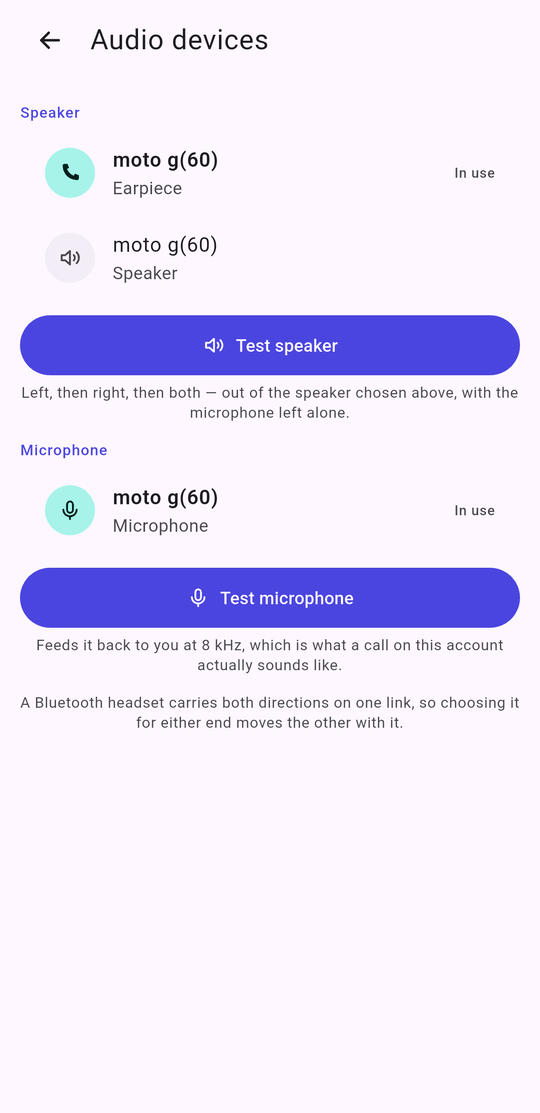 **Settings › Audio devices** lists every input and output the media stack can
see, and marks the ones in use. This is not the same as the speaker button on a
call: that is one choice that moves input and output together, while these can
be set independently — which is the whole point of choosing hardware.
* **Test speaker** plays left, then right, then both, out of the speaker chosen
above, with the microphone left alone.
* **Test microphone** feeds you back at 8 kHz, which is what a call on this
account actually sounds like. It is deliberately not flattering.
A Bluetooth headset carries both directions on one link, so choosing it for
either end moves the other with it. The screen says so rather than letting you
set an impossible pair.
## The SIP log
**Settings › Audio devices** lists every input and output the media stack can
see, and marks the ones in use. This is not the same as the speaker button on a
call: that is one choice that moves input and output together, while these can
be set independently — which is the whole point of choosing hardware.
* **Test speaker** plays left, then right, then both, out of the speaker chosen
above, with the microphone left alone.
* **Test microphone** feeds you back at 8 kHz, which is what a call on this
account actually sounds like. It is deliberately not flattering.
A Bluetooth headset carries both directions on one link, so choosing it for
either end moves the other with it. The screen says so rather than letting you
set an impossible pair.
## The SIP log
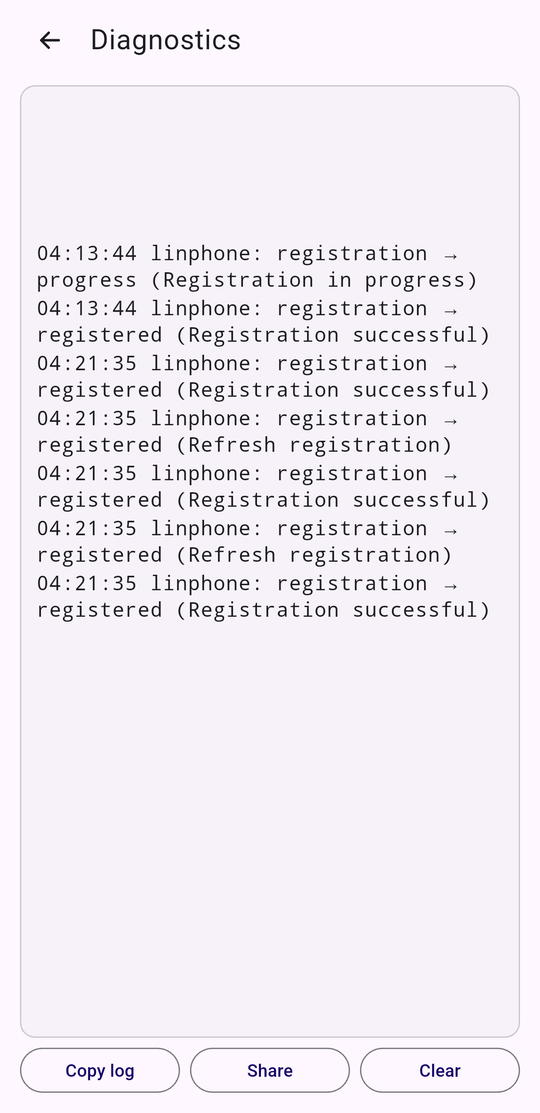 **Settings › Diagnostics** is a live view of what the SIP stack is doing —
registrations, calls, failures, and the reason each one gives. It is also
reachable from **Show logs** on the SIP account screen, which is where you will
want it when a registration will not take.
**Copy log**, **Share** and **Clear** are along the bottom. Share attaches it to
a mail or a message so you can send it to whoever is helping.
Authorization and digest headers are stripped before anything is written
down, so a log you send does not carry your password. The log is kept in the
app's own storage rather than in Files, and **Clear** deletes it from disk as
well as from the screen.
### Reading it
Most faults announce themselves plainly.
| What you see | What it usually means |
| -------------------------------------------- | -------------------------------------------------------------------- |
| `registration → failed (Forbidden)` | Wrong password, or the extension is not provisioned. |
| `registration → failed` with no reply at all | The server or port is wrong, or the transport is blocked. |
| Registers, then every call fails | Very often UDP. [Use TCP or TLS](/mobile/connecting). |
| `No common codec` | Nothing you offer is anything the PBX accepts. Check the codec list. |
| `No such number` | The extension does not exist on the PBX. |
A call that reaches the in-call screen carries its own diagnosis: the quality
pill names the codec that won, the round-trip time, and the signal. A call that
sounds bad with 40 ms and four bars is not a network problem.
**Settings › Diagnostics** is a live view of what the SIP stack is doing —
registrations, calls, failures, and the reason each one gives. It is also
reachable from **Show logs** on the SIP account screen, which is where you will
want it when a registration will not take.
**Copy log**, **Share** and **Clear** are along the bottom. Share attaches it to
a mail or a message so you can send it to whoever is helping.
Authorization and digest headers are stripped before anything is written
down, so a log you send does not carry your password. The log is kept in the
app's own storage rather than in Files, and **Clear** deletes it from disk as
well as from the screen.
### Reading it
Most faults announce themselves plainly.
| What you see | What it usually means |
| -------------------------------------------- | -------------------------------------------------------------------- |
| `registration → failed (Forbidden)` | Wrong password, or the extension is not provisioned. |
| `registration → failed` with no reply at all | The server or port is wrong, or the transport is blocked. |
| Registers, then every call fails | Very often UDP. [Use TCP or TLS](/mobile/connecting). |
| `No common codec` | Nothing you offer is anything the PBX accepts. Check the codec list. |
| `No such number` | The extension does not exist on the PBX. |
A call that reaches the in-call screen carries its own diagnosis: the quality
pill names the codec that won, the round-trip time, and the signal. A call that
sounds bad with 40 ms and four bars is not a network problem.